How to set up a league
For League Admins | App version 1.15.0
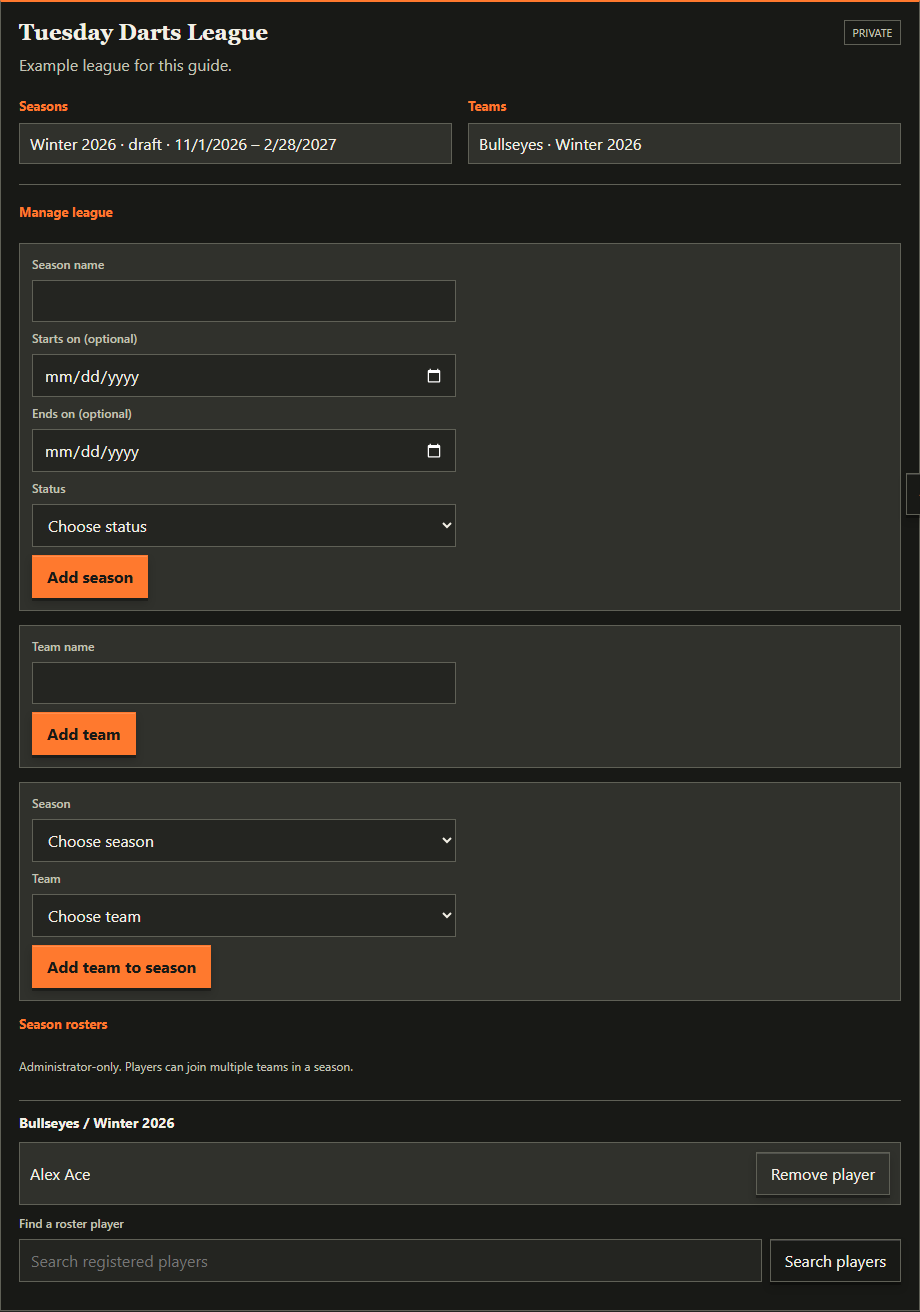
Set up seasons, divisions, teams, player rosters, email invitations, and match schedules. Screenshots use fictional example data: Tuesday Darts League, Winter 2026, Bullseyes, and Alex Ace. First-time setup is guided and vertical; the full structure manager remains available for ongoing edits.
If you opened this guide from League Play, close this tab to return to your league without losing your place.
Video walkthrough
Prefer to watch? These narrated videos cover the whole setup, from opening League Play to building a division's weekly game plan. They have on-screen captions and use fictional example data.
Before you start
Only League Support and users already assigned as a League Admin can create a league from League Play. League Support must assign you as an administrator of a league before you can create one. When you create a league, you become its first administrator and choose whether it is publicly viewable. New leagues are private by default. To request League Admin access, email leaguesupport@wiretowire.app.
League Support retains global governance: it can assign additional administrators, change a league's public/private visibility, and permanently delete a league. Contact League Support for those changes.
Registered players can be added directly. League Admins can also invite someone by email; the invitee creates a password and confirms their email before being added automatically. Invites require the invite migration and Edge Function to be deployed. If the app offers an update, finish any active match and follow the update prompt before continuing.
Player self-registration and designated captains require app version 113 or later.
Open League Play → Add a season → Organize divisions, teams, venues and rosters → Generate the match schedule. First-time setup is a three-step guided flow arranged vertically. Open a team to add players, send invitations, or set its venue. For ongoing edits, choose Open full structure manager to use the League → Season → Division → Teams → Players tree.
League Admins can use Quick Add Team on the Manage tab to create a team and add it to an unlocked season or division without opening the setup flow.
For public player registration, create and link the teams first, optionally assign rostered captains, then set the season to Open for registration. See Open registration and review player requests.
1. Open your league
- Sign in to Wire to Wire.
- On Choose your game, select League Play.
- Choose your league from Select a league.
- Open the Manage tab, select Begin League Setup, and follow the guided steps.
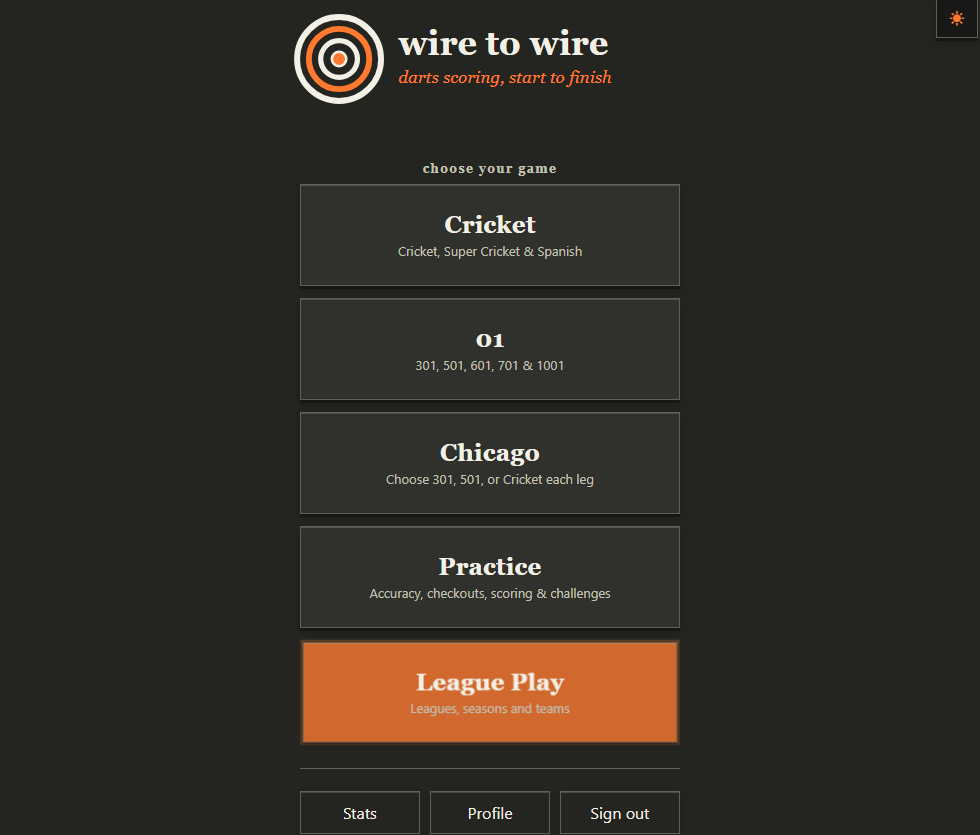
If you can see a public league but not the setup button, you may only have viewing access. Contact League Support to check your assignment. Being on a roster does not give administrator access.
Only the selected league's seasons, teams, schedules, and management controls are shown. League Support can permanently delete a league from its management section; deletion also removes its seasons, teams, rosters, administrators, and scheduled matches, and cannot be undone.
League Support can see the names of the selected league's assigned administrators under League administrators.
The setup popup has three steps: create a season, organize divisions, teams, venues and rosters, then create the schedule. Adjust Season Settings opens schedule adjustment directly. Use Back to return to the structure manager, or choose another season in schedule setup. This button stays available after resetting a schedule.
A scheduled match is one planned game between two teams. Some sports software calls this a fixture; this guide and the app use “match.”
2. Add a season
In the setup popup:
- Enter a Season name, for example Winter 2026.
- Optionally choose Starts on and Ends on dates.
- Choose a Status.
- Select Add season.
- Wait for Season added. and check the Seasons list.
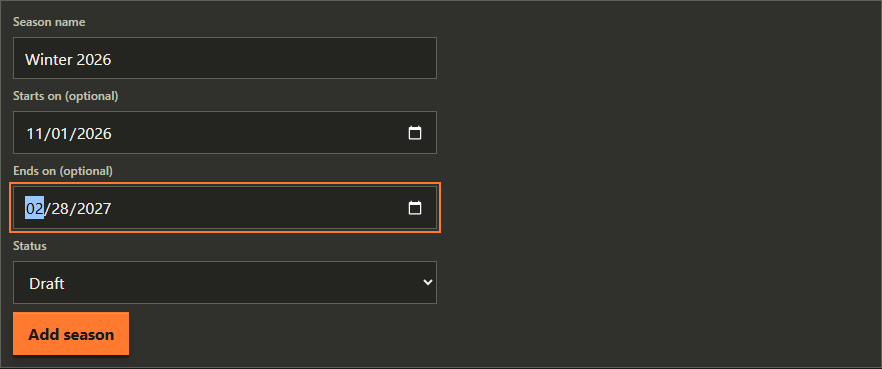
The end date must not be before the start date. Season names must be unique within the league, regardless of capitalization.
- Draft
- A season you are still preparing.
- Open for registration
- A public season accepting player requests to join its linked teams.
- Active
- A season in progress.
- Completed
- A finished season.
For a public league, Open for registration lets signed-in players request a place on a team already linked to the season. A team captain or League Admin must approve each request before the player is added to the roster. Private leagues do not offer player self-registration. Draft, Active, and Completed seasons do not accept new requests; Active seasons allow scheduled games to start.
League Admins can change the status later from the Seasons list by choosing a new status and selecting Save status. Changing away from Open closes new requests; pending requests remain available for review, but cannot be approved unless registration is reopened. Schedule reset requires a Draft/Open season with no started games.
3. Organize divisions, teams, and players
In guided setup, work through the vertical sections in order. Add optional divisions, then create teams in the season or within each division. Use names such as Monday A1 and Tuesday A1 when groups play on different nights. To edit an existing league with the tree, select Open full structure manager.
Within a division, add an existing league team, move an unassigned team into it, or choose Create and add team to create and link a team in one action. The Quick Add Team form on the Manage tab offers the same one-step team and season assignment. Without divisions, manage teams directly from the season. A team can take part in multiple seasons but can be linked only once per season; the team and season must belong to the same league. To rename an existing team, select it in the full structure manager and save its new name in the team details. Renaming is available after the schedule is generated; the name is shared across seasons and appears on schedules and results.
Permanently delete an unused team
Open League Play → Manage → Unused teams, choose Delete permanently beside the team, and confirm. This cannot be undone. Only teams not assigned to any season appear, including past and completed seasons. To make a team unused, select each season or division containing it in the full structure manager and choose Remove; this also removes that season's roster. Removal is blocked while a season has a schedule. Do not delete past match history just to remove a team.
The league_delete_unused_team database migration must be applied before this control can save changes. The database rechecks league-admin access and all season assignments before deletion, including assignments made on another device.
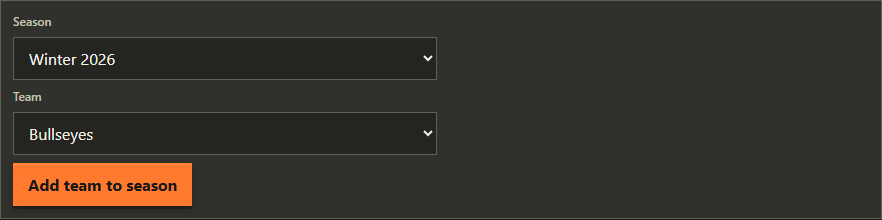
Teams not assigned to a division appear under Not in a division. Move each team using the division selector. Every team needs a division, and each division needs at least two teams, before you can generate matches. Divisions play separately and have their own standings. Each division can also have a different first date, weekday, number of weeks, and weekly game plan. Monday A1 and Tuesday A1 can therefore use different schedules in the same season.
Divisions and team assignments lock when the season has a match schedule. Reset the schedule before changing them; reset is available only for Draft or Open seasons. Without divisions, the season uses one table.
4. Add registered players or invite a player
The Teams tab lists assigned players beneath each team for the selected season, including while registration is open. Teams without players show No players assigned yet. Signed-in users can view public-league rosters; full private-league rosters remain visible only to League Admins and League Support.
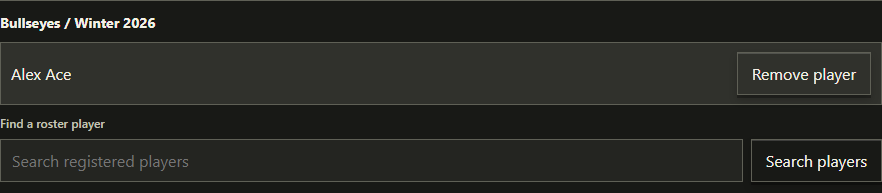
Open a team in the guided roster section or select it in the full structure manager. Registered players appear in Available players automatically. Select one or more checkboxes, optionally filter the list, then choose Add selected players. Players already rostered on another team in the same division are excluded; players in other divisions remain available. Without divisions, players may be added to multiple teams in the season. Wait for the roster confirmation and check the roster list.
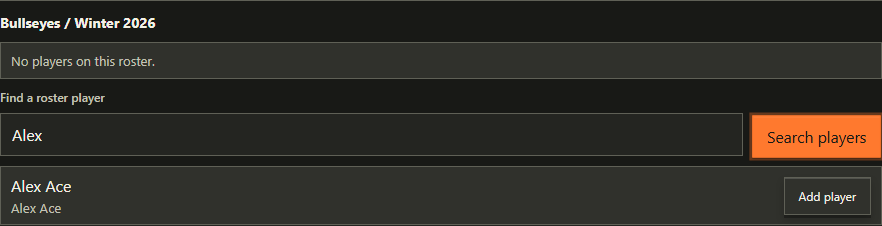
Repeat for the rest of the team. If results are ambiguous, search by the exact registered email. Roster results display names, not email addresses.
To let a team captain review requests, choose one of the rostered players in Designated team captain and select Save captain. Each team can have one captain per season. Only League Admins can assign or change this role; removing the player from the roster also removes the captain assignment.
Invite someone who is not registered
In the selected team's workspace, enter their email under Invite a player by email and choose Send invite. They create a password and confirm their email; confirmation adds them to the team automatically. A player with an existing confirmed account is added directly. Pending invites can be resent or cancelled from the team view. If the invite controls say they are unavailable, the invite backend has not yet been deployed; contact League Support.
How memberships work
- A player can belong to multiple teams in the same season. Add each membership separately.
- A player cannot be added twice to the same team/season. An existing member has a disabled On roster button in search results.
- Rosters are season-specific; they do not automatically copy to a new season.
- Names are captured when added. Later profile renames do not rewrite existing roster labels.
- The complete roster directory is visible only to that league's administrators and League Support, even when the league is public. Participating players can select from their scheduled game's two team rosters without gaining wider roster access.
- When a public season is Open for registration, players can request a place on any linked team. The team captain or a League Admin approves or declines the request; approval adds the player to that season's roster. Players can cancel pending requests.
Open registration and review player requests
League Admin: prepare and open registration
- Confirm with League Support that the league is public. Private leagues continue to use administrator-managed rosters.
- Create each team and link it to the correct season. Players request existing teams; they cannot create teams themselves.
- If a captain will review requests, first add that player to the team/season roster. Choose them in Designated team captain and select Save captain. Captain designation does not grant League Admin access or permission to create teams.
- On the Manage tab, in Seasons, set the season status to Open for registration and select Save status. You can leave captains unassigned and review requests yourself.
Player: request a place on a team
- Sign in to your registered Wire to Wire account and open League Play.
- Choose the public league from Select a league.
- Open the Teams tab, choose the season, and select Request to join beside your team.
- Check for Request pending. This is not a confirmed roster place; wait for the captain or League Admin to approve it.
- To withdraw a pending request, select Cancel request. Cancellation remains available after registration closes.
Captain or League Admin: review requests
- Sign in, open League Play, and select the league.
- Open the Teams tab (its badge counts waiting requests) and find Join requests to review. Captains can review pending requests only for their assigned team/season; League Admins can review requests across their league.
- Select Approve to add the applicant to that team/season roster, or Decline to reject the request. You cannot approve your own request.
- Check the confirmation message. An approved player sees Your team. Reopen League Play to refresh requests or membership changes made by another user.
When registration is finished, change the status to Active and select Save status to allow scheduled games to start. Draft, Active, and Completed seasons do not accept new requests or approvals. Pending requests can still be declined or cancelled; reopen registration before approving them.
5. Generate the season match schedule
Finish linking every participating team before generating. The schedule is built from the teams linked to this season at that time. To replace it, first reset the schedule while the season is Draft or Open for registration.
- Choose Division schedule if applicable, then the First week date and the Number of weeks. Later weeks use the same weekday.
- Choose a Game type, leg mode and target, Player format, and Points per win for each game slot. Leave Play all legs off for Race to wins, or turn it on and set Legs to play.
- Select Add game to weekly plan to include another game, or Remove game to remove an extra slot.
- Select Generate match schedule and wait for Weekly match schedule generated.
- Check that every week contains its expected team pairings and games.
- Repeat for each division, then select Finish setup. The button stays enabled and reports any division without a generated schedule; setup only closes after every division has a schedule. Close lets you leave and return later.
The weekly schedule shows dates, optional start times, home/away matchups, and home venue details. Rostered players can expand View ordered game plan to see each slot's format, leg mode, scoring, and order. Players can switch between My team's matches and the full season or division schedule.
Rostered players can download an iCalendar (.ics) file for one of their teams. League Admins can choose a team from the Team calendar selector. Matches with a start time use that local time; matches without one appear as all-day events. Select Print schedule for a printer-friendly copy of the currently displayed schedule.
Each week, every team plays one opponent; an odd-numbered team list gives one team a bye. The schedule rotates opponents through a round robin, then repeats pairings for longer seasons with home and away reversed. Home and away teams are assigned automatically.
The same ordered game-slot plan is used for every matchup in every week within the selected division, or the whole season if there are no divisions. For example, Super Cricket can play all 5 legs, followed by Cricket, race to 2 wins. Race-to stops when a team reaches the win target; play-all plays the exact configured leg count regardless of who has won the majority. Neither is a best-of count. Selecting Save for every week updates that slot only within the selected division. Schedules are public for public leagues and administrator-only for private leagues.
Configure scoring rules for each game slot
- Race to wins: leave the Play all legs toggle off. The first team to reach the win target wins that game slot.
- Play all legs: turn the toggle on and set Legs to play. Play all 5 means every one of the 5 legs is played, even if one team wins the majority early. Both modes require a positive whole-number target; each slot can use a different mode.
- Player format: Singles (1 per team), Doubles (2), Triples (3), or Team (4+). Select actual roster players when starting the scheduled game.
- Points per win: non-negative league points per win, not the dart score. Fractions such as 0.5 or 1.25 are allowed; 0 makes a slot non-scoring.
- Award points for: choose Every leg won or Match winner only. Match-winner scoring awards the configured points once, regardless of leg total; a drawn play-all match awards neither team points. Leg totals are still recorded. New singles slots default to match-winner scoring; existing slots retain per-leg scoring.
- Distinct players across the singles block: checked singles slots form one block per weekly matchup. Each roster player may appear once across those slots. Other game slots and other weeks are unaffected.
Four best-of-three Chicago singles
Select Add 4 Chicago singles to append four separate Singles/Chicago slots, each Race to 2, with Match winner only points and distinct-player enforcement. Remove the initial default game if you only want the four singles, or keep it for other weekly games. Captains/scorers choose one player per team for each slot; four slots require four different players per team. Assigned players are unavailable in later lineups, and the server checks again when starting. Rejected or released assignments free their players for a replacement lineup.
Chicago keeps its current per-leg choice of 301, 501 or Cricket, without a forced sequence. Race to 2 is best of 3: stop at 2-0 or 2-1.
Each weekly slot can have different rules. Existing schedules retain their rules; review them in Adjust Season Settings. Save for every week saves all settings for the slot throughout the selected division, or the undivided season, and reset/regeneration preserves them. Started games cannot be edited; a slot update fails if it would change a started game in its scope.
Confirm the team list, first date, number of weeks, and weekly game plan before generating. Team-season links are locked after generation to keep the schedule consistent.
Score games and review results
- Set the season to Active. Participating roster players, League Admins, and League Support see authorized games on the Matches tab, including private leagues. Players see matches from their assigned division; administrators can choose a division or All divisions.
- Select Select lineup and score, choose each team's players, and select Start scheduled game. Singles requires one player per side, Doubles two, Triples three, and Team at least four. A player cannot appear on both sides. For X01, choose double-out before starting.
- Score normally. Race-to ends at the win target; play-all completes every configured leg and allows draws.
- Select Submit league result, retry visibly failed submissions, then select Return to League Play.
- A League Admin or League Support selects Confirm result or provides a reason and selects Reject result. Rejected games can be rescored.
- Confirmed games move to Completed Matches; unconfirmed games remain under Active Matches. Open the Standings tab and choose the season. Only confirmed results count. Each slot awards points per leg or once per match win, as configured. A play-all draw earns per-leg points on both sides but no match-winner points. Equal points share rank.
One scorer owns each game. Reload resumes the saved board on the same account/device. After leaving it, use Resume scoring. If the board is missing, its assigned scorer can restart using the captured lineup. Administrators can Release scorer with a reason to permit reassignment; old attempts cannot overwrite a newer attempt. If device storage fails, keep the page open until submission.
Confirm carefully: confirmed results have no correction control in this release; reject mistakes before confirming. Started fixtures cannot be changed, deleted, or reset, even after rejection or release. This also blocks a whole-season reset or league deletion containing them. League games save team results only, not individual account match history, dart events, or player statistics. There is no shared live multi-device scoreboard.
Correct a schedule without starting over
Reopen Adjust Season Settings and choose the correct season. In a Draft or Open for registration season, select Reset schedule and confirm. Review the prefilled first-week date, week count, and weekly game plan, correct them, then generate again before finishing. Use Back to add missing teams or roster players.
Choose Division schedule before resetting a divided season. Reset removes only that division's scheduled matches, leaving other divisions and their results untouched. Without divisions, it resets the season schedule. Season details, teams, team-season links, rosters, and assigned admins are kept. The last generated date, week count, and current game-slot settings are saved in the database and prefilled even after reopening the app. Active and Completed seasons cannot be reset. Canceling or a failed reset leaves the schedule unchanged.
Add a game type after setup
In Adjust Season Settings, select the season and division, choose New game type, the leg-mode toggle and New game race to wins or New game legs to play, Player format, Points per win and how points are awarded, then select Add game to future weeks. The new slot is appended once to every matchup dated after today in the selected division, or the whole season without divisions, without changing existing games, dates, pairings, or past weeks. No reset is needed.
Adding games is available only for Draft/Open seasons. Set the season to Active when play begins to lock this option; Completed also locks it. Existing started games are also protected against edits and schedule reset.
6. Remove or correct a membership
- Find the exact team / season roster.
- Select Remove player beside the player.
- Wait for Player removed from roster.
- Check that the player is no longer listed.
Removing a player asks for confirmation before deleting that team's membership for the selected season. If you confirm the wrong removal, search for the player and add them again; there is no Undo button.
Removal does not delete the account or affect other memberships. To move a player, remove the old membership and add the new one. Adding a new membership does not automatically remove the old one.
7. Check your setup
- Your league shows the Adjust Season Settings button.
- The season name, dates, and initial status are correct.
- All teams appear under Teams.
- Every participating team is linked to the correct season.
- Each roster lists the intended registered players.
- The generated match schedule has each intended pairing and date.
- There are no accidental memberships on other teams or seasons.
- League Support has confirmed the intended public/private visibility.
Troubleshooting
- Your private league is missing
- Check you are signed in with the assigned account. Contact League Support to check access, then reopen League Play.
- No Begin League Setup button
- Public viewing access is not administrator access. Contact League Support to assign you to the league.
- Add team to season is disabled
- Create at least one season and one team first.
- No team/season roster section
- Link the team to the season and update to app version 99 or later.
- No match schedule form
- Update to version 106 or later and link at least two teams to the season. If a schedule already appears, it has already been generated.
- No matching players
- Try the registered name or email using at least two characters. Confirm the player has a Wire to Wire account.
- No Request to join button
- Use version 113 or later, sign in, and select a public league with an Open for registration season and linked teams. Existing members see On roster; pending applicants see Request pending.
- Captain cannot see requests to review
- A League Admin must designate that rostered player for the correct team and season. Reopen League Play to refresh. Only pending requests from other players can be reviewed.
- Registration is closed
- New requests and approvals require Open for registration. A League Admin can reopen the season; pending requests can still be declined or cancelled while closed.
- On roster
- The player is already in this team/season roster. No action is needed.
- Duplicate-name or membership error
- Check existing records before retrying. Names are case-insensitively unique within the league.
- Permission error
- Your administrator assignment may have changed. Reopen League Play and contact League Support to check access.
- Save or reload error
- Read the message, reopen League Play, and check whether the record was saved before retrying. A save can succeed even if refreshing the list fails.
Current limits
Scoring, result approval, and team standings are supported. Individual league statistics and corrections to confirmed results are not. Team names can be edited in the full structure manager, and unused teams can be permanently deleted from Manage. There are no controls to edit individual match dates/pairings. To change the first date, week count, or remove game slots, reset and regenerate a Draft/Open season's schedule before any game starts. New game slots can be added to future weeks without resetting. Team-season links are locked after generation. Contact League Support to correct existing season names/dates.
Public visibility exposes the league/season/team directory through the data API, not rosters or a standalone public league page. In-app League Play requires sign-in. This help page contains only instructions and fictional screenshots, and does not require sign-in.